
Best Apps to Convert Handwritten Tables to Excel in 2026 (Tested & Ranked)
Struggling to convert handwritten tables into Excel? We tested 7 tools on real handwriting — messy, cursive, and structured then ranked them honestly. One clear winner.
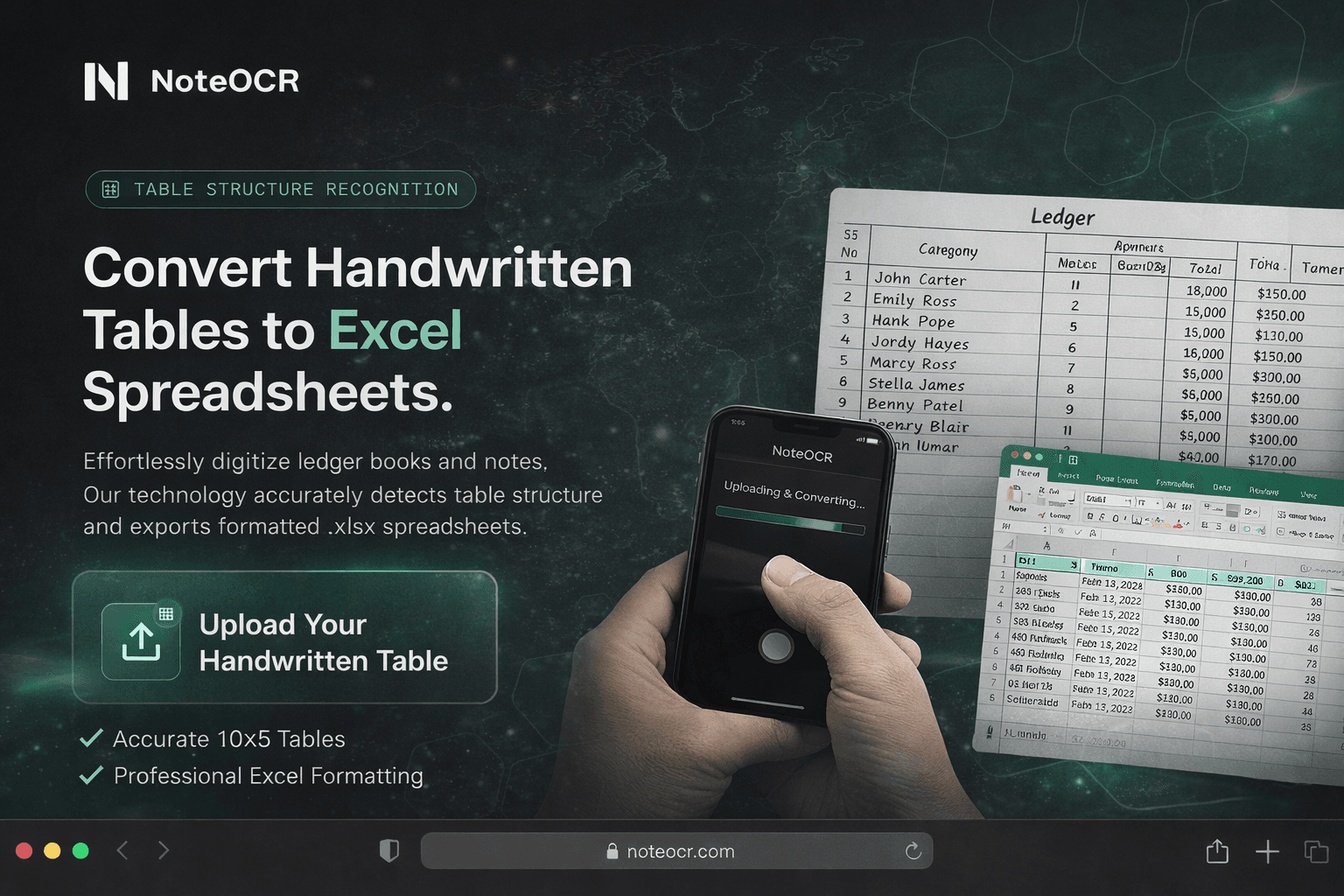
You have a clipboard full of handwritten tables — shift logs, student marks, inventory counts, lab readings — and somewhere between the paper and the spreadsheet, hours disappear. You're not slow. The workflow is broken.
OCR tools promised to fix this years ago. Most of them still can't read your handwriting correctly, and almost none of them understand that row 3, column 4 belongs in cell D3 — not dumped as unstructured text at the bottom of a document. We tested 7 tools on the same set of real handwritten tables — neat, messy, cursive, multi-column — to find out which ones actually work. Here's what we found.
Jump to
What to Look For in a Handwritten Table Converter
Not all OCR tools are equal — and the gap widens dramatically when handwriting and table structure are both involved. Before reviewing individual tools, here is the criteria that actually matters:
Handwriting Accuracy
Most OCR engines were built for printed text and retrofitted for handwriting. A tool trained specifically on varied, messy, real-world handwriting performs meaningfully better — especially on cursive and inconsistent letter spacing.
Table Structure Preservation
This is the hardest problem. A tool must detect row and column boundaries in a handwritten grid — even when lines are slightly crooked, cells are blank, or columns aren't perfectly aligned — and map values to the correct Excel cells.
Output Format
The goal is Excel. A tool that outputs plain text, a Word document, or a PDF and asks you to copy-paste into a spreadsheet has not solved the problem. Look for native .xlsx output — ideally with the file ready to open immediately.
Language Support
If your workforce writes in Arabic, French, Hindi, or Chinese, language coverage matters. Some tools are Latin-script only. Others support 40+ languages including non-Latin scripts.
Batch Processing
For teams processing dozens or hundreds of pages per day — site reports, student answer sheets, farm records — single-page upload is a bottleneck. Batch upload and bulk conversion is essential at scale.
Pricing Model
Monthly subscriptions compound fast for occasional users. Pay-per-use or one-time credit models are more economical for non-daily workflows. Consider whether credits expire and whether the model forces renewal.
Want to skip the research and just convert your table now?
Upload any handwritten table image — get a clean, structured Excel file open in your browser in under 30 seconds.
The 7 Best Apps to Convert Handwritten Tables to Excel
Each tool below was evaluated on the same criteria: handwriting recognition quality, table structure preservation, output format, supported file types, language support, and pricing. Rankings reflect real-world performance on handwritten tables specifically — not general OCR benchmarks.
NoteOCR
Best OverallPurpose-built for handwritten tables. Converts directly to a live in-browser Excel editor.
NoteOCR is the only tool in this comparison built specifically around handwritten-to-structured-spreadsheet conversion. Most OCR tools read text line by line and dump the output. NoteOCR reads the spatial structure of your page — detecting row boundaries, column edges, and cell relationships — and maps every value to the correct Excel cell, whether the original document was neatly printed or written in the messiest field handwriting you can produce.
What makes NoteOCR genuinely different is what happens after the conversion. The moment your image is
processed, the resulting document opens live in a browser-based spreadsheet editor that
looks and functions exactly like Microsoft Excel. You see your data in the grid immediately, with rows,
columns, and formatting intact. You can edit cells, fix any recognition errors, rename headers, and
format values — all without installing anything. When satisfied, download in any of 10+ formats including
.xlsx,
.csv,
.ods, and
.pdf.
Strengths
- ✓Trained specifically on real-world handwritten tables
- ✓Preserves row/column structure — data lands in correct cells
- ✓Live in-browser Excel editor — no copy-pasting
- ✓Handles both printed and handwritten content
- ✓Documents auto-saved — downloadable anytime
- ✓10+ export formats including .xlsx, .csv, .ods, .pdf
- ✓Supports 40+ languages including Arabic, Chinese, Hindi
- ✓One-time credits — no subscription, credits never expire
Limitations
- ✗Web-based only — no native desktop app currently
- ✗Free trial credits are limited; bulk use requires a paid plan
Adobe Acrobat
Best for PDF-Heavy WorkflowsIndustry-standard PDF tool with OCR — strong on printed text, limited on handwriting.
Adobe Acrobat's OCR is one of the most well-established text recognition engines available. For printed documents — scanned forms, typed tables, business receipts — it performs reliably and exports to Word or Excel with reasonable formatting preservation.
For handwriting, results are more complicated. Adobe's own documentation acknowledges its OCR is optimized for printed text, and independent testing consistently shows accuracy on handwritten content drops significantly compared to specialized tools. On handwritten tables specifically, cell alignment and column mapping can break entirely.
Strengths
- ✓Excellent OCR on printed, typed, and scanned text
- ✓Exports directly to .xlsx, .docx, and other formats
- ✓Handles complex multi-column printed layouts well
- ✓Deep integration with Adobe ecosystem and Microsoft Office
Limitations
- ✗Handwriting recognition accuracy is moderate — neatness required
- ✗Handwritten table structure often lost or incorrectly mapped
- ✗Expensive subscription for users who only need basic digitization
Microsoft Lens
Best for Microsoft 365 UsersA free mobile scanner with table extraction — but handwriting support is limited to English only.
Microsoft Lens is a free mobile app for iOS and Android that can photograph documents, whiteboards, and business cards, and save them directly to Word, PowerPoint, PDF, or OneDrive. Its table extraction feature detects printed tables in images and preserves the grid structure.
The critical limitation: handwriting text extraction in Microsoft Lens is currently limited to English only. Additionally, independent testing places accuracy for cursive or irregular handwriting at 40–60% — too low for business-critical data without heavy manual review.
Strengths
- ✓Free — no cost for basic scanning and OCR
- ✓Printed table detection preserves structure reasonably well
- ✓Native integration with OneDrive, Word, Excel, and OneNote
Limitations
- ✗Handwriting OCR limited to English only
- ✗Accuracy on cursive/messy handwriting is 40–60%
- ✗Handwritten tables frequently lose column structure
Google Drive OCR
Best Free Option (With Caveats)Genuinely free, surprisingly capable — but tables come out jumbled and handwriting accuracy is inconsistent.
Google Drive has a built-in OCR feature most users don't know about. Upload any image or PDF to Google Drive, right-click it, and open it with Google Docs — Drive processes the image and places extracted text in an editable document. It's completely free and requires no additional software.
The more significant issue is table handling: when the source image contains a table, Google Drive's OCR does not preserve the grid structure. Columns may not align correctly, blank cells cause surrounding values to shift, and the output is typically jumbled text requiring manual reconstruction in a spreadsheet — defeating the purpose.
Strengths
- ✓Completely free — no account upgrade required
- ✓No additional software to install
- ✓Adequate accuracy on printed text
Limitations
- ✗Table structure is not preserved — output is jumbled
- ✗Handwriting accuracy inconsistent on cursive
- ✗No direct Excel output — requires manual copy-paste
- ✗No batch processing capability
ABBYY FineReader PDF
Best for Enterprise Print OCRIndustry-leading printed text OCR with 190+ languages — but handwriting support is not in FineReader.
ABBYY FineReader PDF is widely regarded as the gold standard for printed document OCR. It handles complex multi-column layouts, tables in scanned PDFs, and documents in over 190 languages with outstanding accuracy. For organizations processing large volumes of scanned business documents — all printed — FineReader is the benchmark.
However, for handwritten content, an important technical distinction applies: ABBYY's advanced ICR for handwriting is not included in FineReader. For dedicated handwriting recognition, ABBYY offers separate enterprise products — but these are not the consumer FineReader product most users purchase.
Strengths
- ✓Best-in-class OCR accuracy for printed documents
- ✓Supports 190+ languages including complex scripts
- ✓Exports to Word, Excel, PowerPoint, searchable PDF
- ✓Batch processing available; local processing
Limitations
- ✗Handwriting recognition limited — not a core FineReader capability
- ✗Advanced ICR requires separate ABBYY enterprise products
- ✗Annual subscription model — no one-time purchase
Pen to Print
Strong for Handwriting, Weak on TablesGood handwriting OCR engine — but Latin-only, and table structure isn't its strength.
Pen to Print is a dedicated handwriting-to-text tool available on iOS, Android, and web, with an OCR engine specifically trained on handwritten content including cursive, block letters, and irregular scripts. It can accurately read messy writing that general OCR tools miss.
A significant limitation is language support: Pen to Print currently supports Latin script only, making it unsuitable for Arabic, Chinese, Devanagari, or other non-Latin writing systems. Its form processing feature also works better with predefined templates than arbitrary freehand table layouts.
Strengths
- ✓Purpose-trained engine handles messy and cursive handwriting
- ✓Form processing useful for standardized form layouts
- ✓Available on iOS, Android, and web
- ✓10-page free trial available
Limitations
- ✗Latin script only — no Arabic, Chinese, Hindi, etc.
- ✗Table mapping works best with predefined templates
- ✗Free tier cannot export — must subscribe to get files
ChatGPT (Vision)
Promising AI Option — InconsistentGPT-4o can read tables from images and output CSV — but handwriting accuracy is unreliable and there's no direct Excel output.
ChatGPT with vision capabilities (GPT-4o) can accept an image upload, interpret the contents, and output structured data in CSV or Markdown table format — which you can then copy into Excel. For clean, printed tables, this workflow is surprisingly capable.
For handwritten tables, ChatGPT's accuracy becomes significantly less reliable. It may misread characters, confuse columns, skip rows, or hallucinate values that don't exist in the image — a risk profile unacceptable for business-critical data. The output also requires manual steps: copy the CSV text, paste into Excel, and validate every row — there is no direct file download.
Strengths
- ✓Can output CSV-formatted table data from clean images
- ✓Flexible — can be prompted for specific column formats
- ✓Useful if you already have a ChatGPT Plus subscription
Limitations
- ✗Handwriting accuracy unreliable — errors and hallucinations
- ✗No direct Excel file output — requires copy-paste workflow
- ✗Manual validation required for every conversion
- ✗$20/month subscription required for image upload capability
Side-by-Side Comparison
The table below compares all seven tools across the criteria that matter most for handwritten-table-to-Excel conversion.
| Tool | Handwriting | Table Structure | Direct Excel | In-Browser Editor | Languages | Pricing |
|---|---|---|---|---|---|---|
| 🏆 NoteOCR | Excellent | Full preservation | ✓ Yes (.xlsx + 10 formats) | ✓ Yes — live editor | 40+ languages | One-time, no expiry |
| Adobe Acrobat | Moderate (print-focused) | Good for printed only | ✓ Yes | ✕ No | Multi-language | Subscription $19.99/mo |
| Microsoft Lens | 40–75% (English only) | Good for printed tables | ⚠ Via Word/OneDrive | ✕ No | English handwriting only | Free |
| Google Drive OCR | Variable — neat print best | Tables come out jumbled | ✕ Manual copy-paste only | ✕ No | Multi-language | Free |
| ABBYY FineReader | Limited (not in FineReader) | Excellent for printed | ✓ Yes | ✕ No | 190+ languages | Subscription $99/year |
| Pen to Print | Good (handwriting-trained) | Template-dependent | ⚠ With additional steps | ✕ No | Latin script only | Subscription $4.99/mo |
| ChatGPT Vision | Inconsistent on handwriting | CSV output, no file | ✕ Copy-paste CSV only | ✕ No | Multi-language | $20/month (Plus) |
Real-World Use Cases
Handwritten tables appear across industries in different forms, but the underlying need is the same: get structured paper data into a spreadsheet, accurately and fast.
Construction — Daily Site Logs
A site foreman fills in a handwritten daily log: worker names, hours on-site, materials used, equipment downtime. With NoteOCR, the foreman photographs the form and the project manager receives a structured spreadsheet in under a minute — columns intact.
Saves 45–90 min per site per dayEducation — Mark Sheets & Grade Books
A school administrator has handwritten mark sheets for 400 students across 8 subjects. A tool that preserves row/column structure converts this to a fully structured Excel file where each cell contains the correct score — ready for grade reporting.
A full day's work reduced to 30 minutesAgriculture — Farmer Field Records
A cooperative collects handwritten field books from 50 smallholder farmers monthly — each recording crop yields, input quantities, and dates across a hand-drawn table. Converting all 50 for government subsidy reporting used to take a full week of clerk time.
~35 hours of clerk work replaced monthlyFinance — Handwritten Ledgers & Petty Cash
Small businesses and field offices often maintain handwritten petty cash books — structured tables with dates, descriptions, and amounts. An accurate conversion to Excel with all rows and amount columns correctly mapped means the data is ready for reconciliation immediately.
Eliminates most error-prone step in monthly closeHow to Convert a Handwritten Table to Excel Using NoteOCR
The full process from upload to structured spreadsheet takes under 60 seconds.
- 01. Photograph or scan your document. Use your phone camera in good lighting, or use a flatbed scanner. NoteOCR accepts JPG, PNG, HEIC, TIFF, and PDF. For multi-page documents, upload a multi-page PDF and all pages are processed in one session. Tip: Good lighting and a straight-on angle improve results. Avoid shadows across the page.
- 02. Upload to NoteOCR. Go to app.noteocr.com and drag your image into the upload area, or click to browse. No account required for your first conversion — NoteOCR provides free trial credits to get started.
- 03. AI processes and structures your document. NoteOCR's engine reads your handwriting, detects the table structure — rows, columns, headers, blank cells — and maps every value to the correct cell. Processing typically completes in under 30 seconds for standard pages.
- 04. Your spreadsheet opens live in the browser. Instead of triggering a download, NoteOCR opens the converted document in a browser-based Excel-compatible editor. You see your data in the grid — in the same layout as your original handwritten table — and can edit any cell, fix a recognition error, or add formatting directly in the browser.
-
05.
Download in your preferred format. When satisfied, download in any of 10+ available formats:
.xlsx,.csv,.ods,.pdf,.docx, and more. Your document is also automatically saved to your NoteOCR account — available for re-download at any time.
Ready to try it on your own handwritten table?
No subscription. No credit card. Upload now and get your first conversion free.
Frequently Asked Questions
Can AI really convert messy handwriting to Excel accurately?
Yes — with the right tool. General-purpose OCR tools were built for printed text and struggle significantly with irregular handwriting, especially cursive. Tools like NoteOCR that are specifically trained on real-world handwritten documents perform far better. The quality of your image matters: good lighting and a straight-on angle improve results, but the AI handles real handwriting variation well.
What is the best free app to convert handwriting to Excel?
Google Drive OCR and Microsoft Lens both offer free handwriting extraction, but neither preserves table structure or outputs a ready-to-use Excel file. For handwritten tables specifically, NoteOCR offers free trial credits that let you test the full conversion — including the in-browser Excel editor — before purchasing.
How does NoteOCR preserve the row and column structure of a handwritten table?
NoteOCR uses a dedicated Table Structure Engine trained specifically on real-world handwritten tables. Rather than reading text line-by-line, it analyzes the spatial relationships between values — detecting grid lines, inferring column boundaries even when they're imprecise, handling blank cells without shifting surrounding values, and mapping each recognized character to the correct Excel cell position.
Does it work on both printed and handwritten text?
Yes. NoteOCR handles both printed and handwritten content accurately — including documents that mix both (for example, a pre-printed form with handwritten values filled in). You don't need separate tools or workflows for different document types.
What languages does NoteOCR support?
NoteOCR supports 40+ languages including English, French, Spanish, Arabic, Hindi, Chinese (Simplified and Traditional), Portuguese, Swahili, and more. It handles multilingual documents with mixed scripts within the same page.
Does NoteOCR require a monthly subscription?
No. NoteOCR operates on a one-time credit model, not a subscription. You purchase a credit package once — Starter ($12 for 100 pages), Plus ($25 for 300 pages), or Pro ($50 for 1,000 pages) — and credits never expire or reset. You're not locked into a recurring charge.
Can I process multiple pages at once?
Yes. NoteOCR Pro supports batch processing — uploading and converting hundreds of documents simultaneously. Multi-page PDFs are processed page by page in a single upload. This is designed for end-of-day or end-of-week bulk digitization workflows common in construction, education, agriculture, and logistics.
Is my data secure when I upload documents to NoteOCR?
Yes. Documents uploaded to NoteOCR are processed securely, are not used to train AI models, and are not shared with third parties. All data transmission is encrypted. Enterprise plans include additional compliance and data handling guarantees for organizations with strict data governance requirements.
Final Verdict: Which Tool Should You Use?
The right tool depends on what you're actually working with. Here's the short version:
For handwritten tables → Excel
Use NoteOCR
The only tool that combines handwriting accuracy, row/column structure preservation, live in-browser editing, and direct multi-format download in a single flow. Works on both printed and handwritten content. One-time pricing with no expiry.
For printed/scanned PDF workflows
Use Adobe Acrobat or ABBYY FineReader
Both are strong on printed documents. ABBYY is more affordable; Acrobat is better integrated with the Adobe ecosystem.
For occasional use on clean documents
Use Google Drive OCR or Microsoft Lens
Free and accessible. Adequate for simple printed text extraction when table structure isn't critical.
For handwritten notes (Latin script only)
Use Pen to Print
Good handwriting OCR for Latin-based languages. Limited on complex freehand table layouts and doesn't support non-Latin scripts.
The specific combination that most workflows demand — read messy handwriting, understand table structure, output a structured spreadsheet, let me edit it immediately, download in any format — is only delivered end-to-end by NoteOCR. The other tools each solve part of the problem. NoteOCR solves all of it.
Your Handwritten Table → Clean Excel Data. In Seconds.
No subscription. No software to install. No copy-pasting into a spreadsheet. Upload your image and get a structured Excel file open in your browser right now.
Starter from $12 · One-time payment · Credits never expire

About Daniel Atu
The NoteOCR team consists of AI researchers and engineers dedicated to closing the gap between analog thought and digital workflows. We build tools that make handwriting perfectly searchable.
More about usKeep reading
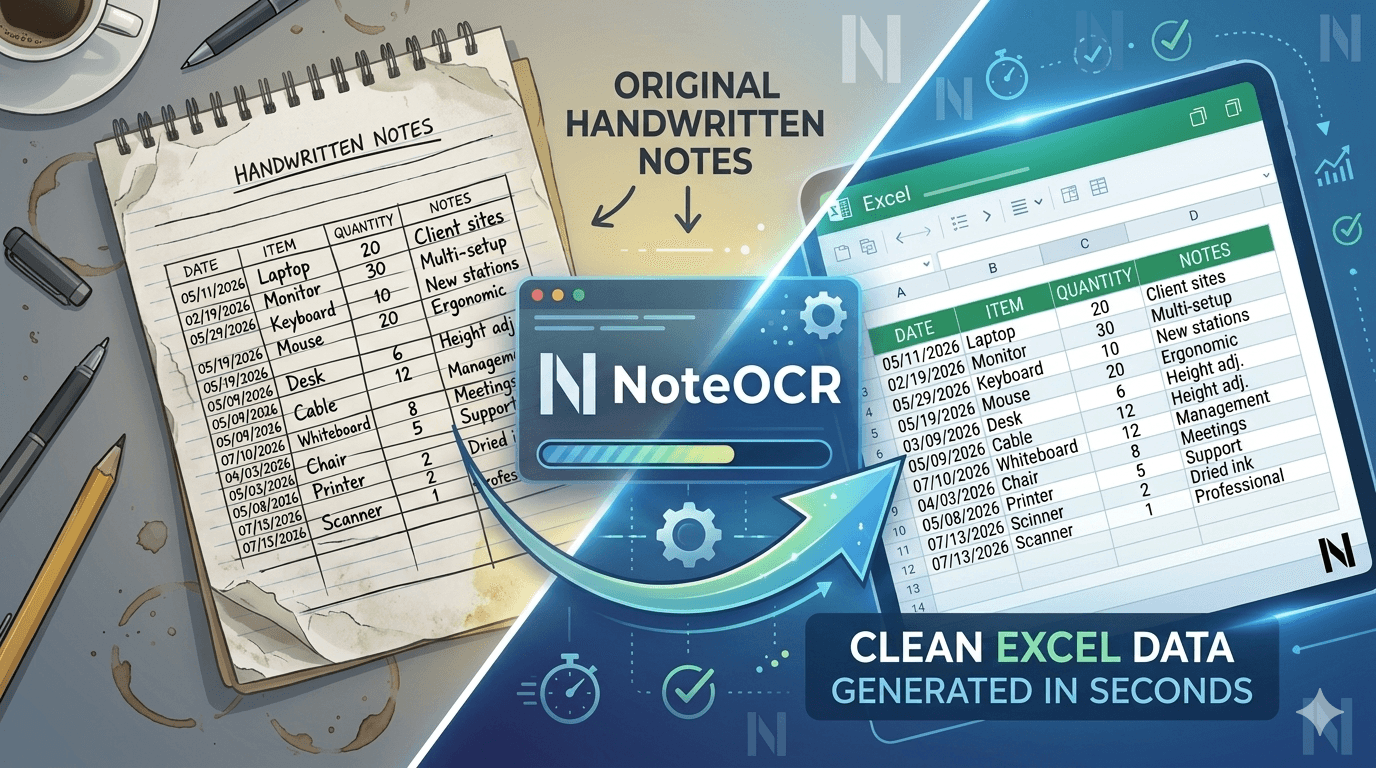
Convert Handwritten Notes & Tables to Excel: The Complete Industry Guide (2026)
Stop wasting hours re-entering handwritten data. Learn how NoteOCR converts notes, tables and forms into clean Excel data in seconds.
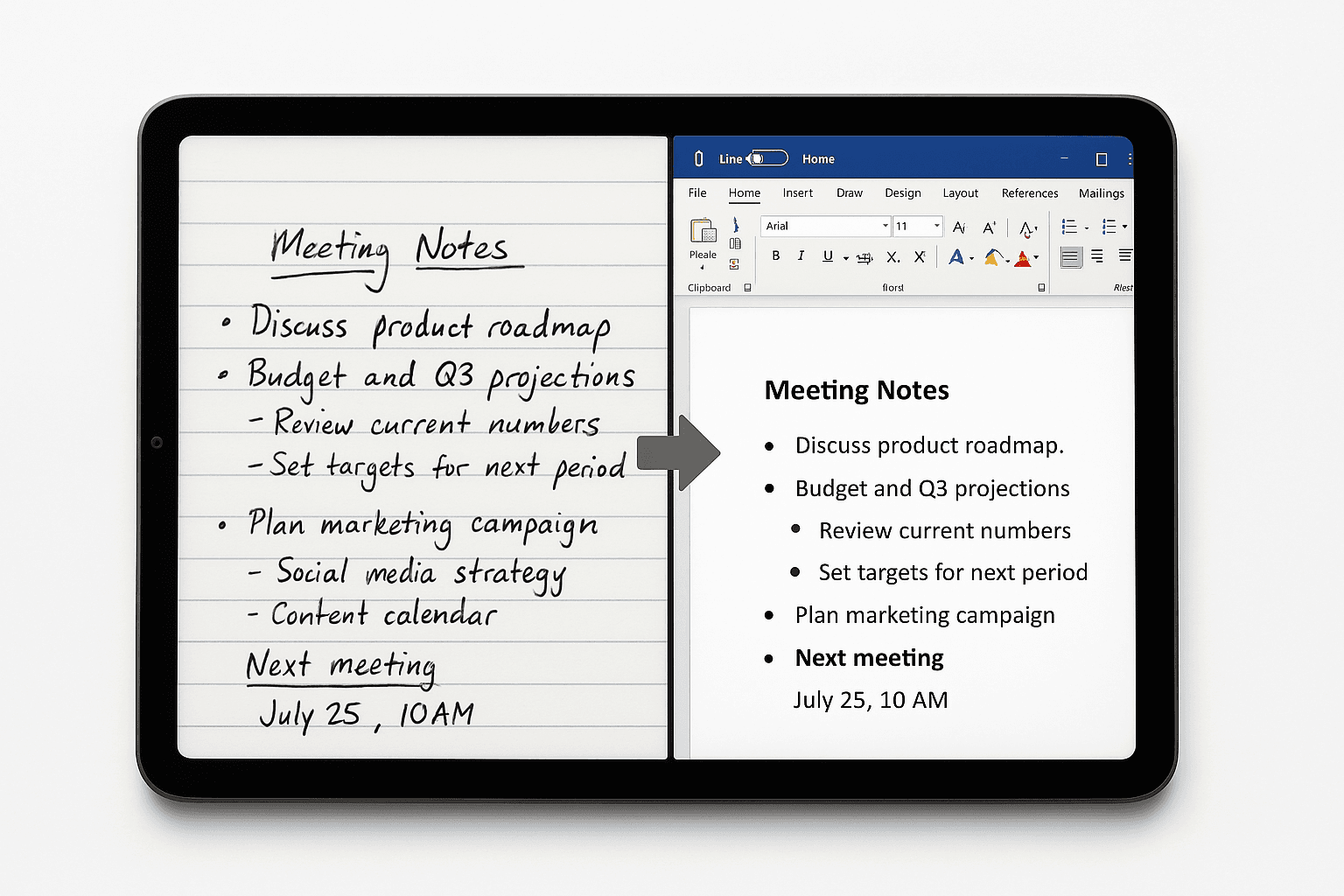
How to Convert Handwritten Notes to a Word Document Online (Without Retyping a Single Word)
Stop retyping handwritten notes manually. We tested 6 tools that convert handwritten pages to editable Word documents online — and ranked them honestly. One handles messy writing, tables, and multi-language text better than all the rest.