How to Convert Handwritten Notes to a Word Document Online (Without Retyping a Single Word)
Stop retyping handwritten notes manually. We tested 6 tools that convert handwritten pages to editable Word documents online — and ranked them honestly. One handles messy writing, tables, and multi-language text better than all the rest.
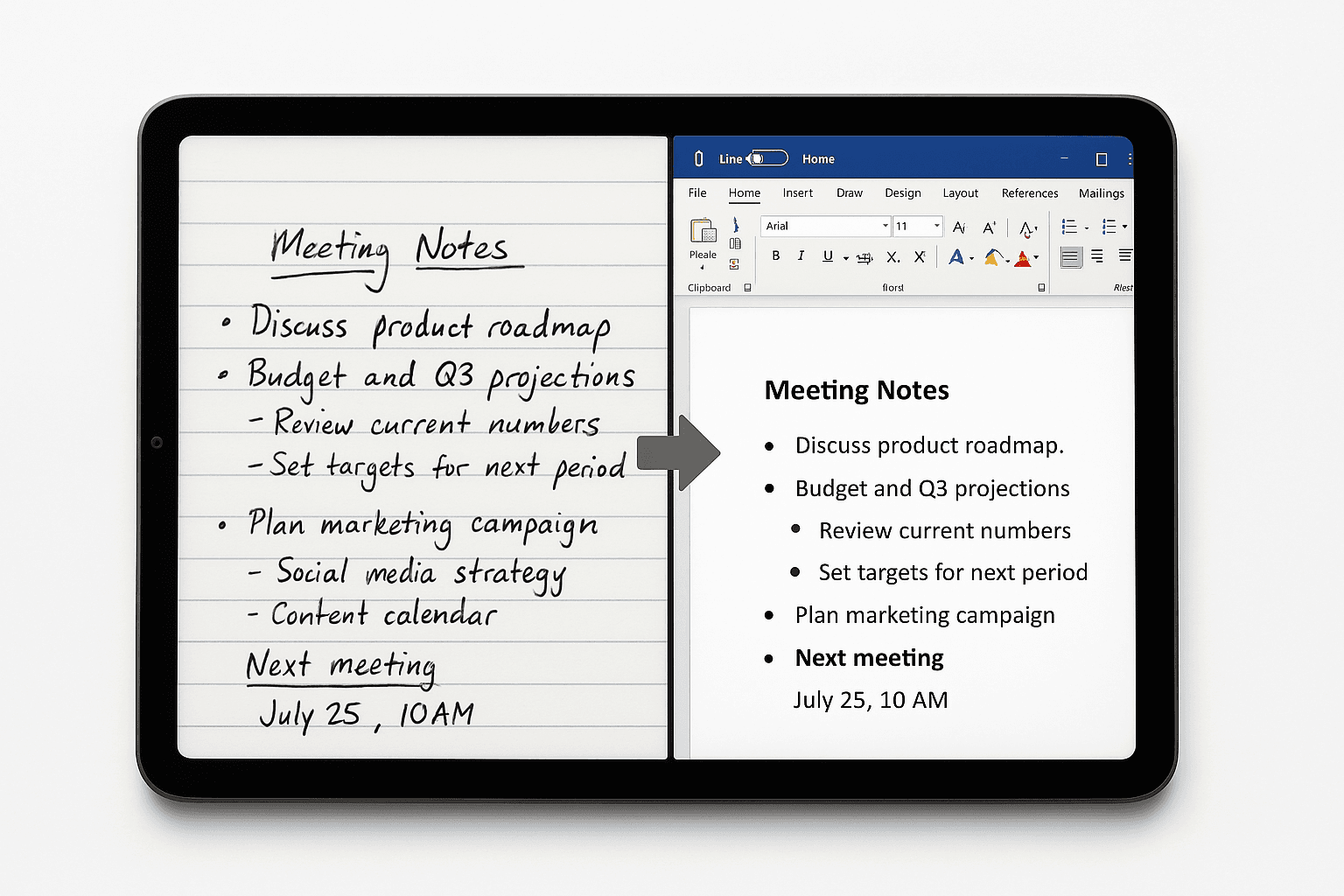
You have pages of handwritten notes. You need them in a Word document — searchable, editable, shareable. The old answer was simple and painful: sit down and retype everything. The new answer is faster, but only if you pick the right tool. Most OCR apps claim to handle handwriting. Very few actually do it well. And almost none of them output a clean, properly structured .docx file you can open directly in Microsoft Word without reformatting.
This guide covers exactly what makes handwriting-to-Word conversion hard, tests six tools against real handwritten pages — neat, messy, cursive, mixed with printed text — and tells you which one is actually worth your time.
In This Guide
Why Converting Handwriting to a Word Document Is Actually Hard
Most people assume OCR is a solved problem. For printed text, it largely is. For handwriting, it remains one of the genuinely hard problems in computer vision — and here's why tools keep failing at it.
Problem 01
No Two People Write the Same
Standard OCR engines were trained on digital fonts where every character looks identical. Handwriting doesn't work that way. Your letter "a" looks nothing like someone else's, and even your own writing varies line to line.
Problem 02
Lines Don't Stay Straight
Handwritten lines drift, tilt, and curve. Characters overlap in cursive. Most OCR engines parse text in horizontal sweeps — when lines aren't perfectly straight, the sweep breaks and characters get mis-assigned or dropped entirely.
Problem 03
Text to .docx Is a Second Problem
Even tools that read handwriting accurately often output a plain text dump. Getting that into a properly structured Word document — with paragraphs, line breaks, and formatting — requires a second layer of processing most tools skip.
The tools that actually solve this use handwriting-specific AI models — not retrofitted print OCR — and treat the Word output as a first-class deliverable, not an afterthought.
What to Look For in a Handwriting-to-Word Converter
Before testing the tools, these are the criteria that actually determine whether a converter is useful for real work — not just demo-quality scans.
Handwriting-Specific Accuracy
Is the model actually trained on handwritten text, or is it a general OCR engine with handwriting bolted on? The accuracy gap between these two approaches is significant on messy, real-world writing.
True .docx Output
Does it produce a real Word document with paragraphs and structure intact — or a text block you have to reformat manually inside Word before it's usable?
In-Browser Editing Before Download
No converter is 100% perfect. The ability to quickly fix a misread word in a browser editor before exporting saves significant time and avoids opening half-corrected files in Word.
Language Support
Many tools only support English or Latin-based scripts. If your notes are in Arabic, Hindi, Chinese, or French, language support is non-negotiable — and most tools fail here silently.
No Software Required
A tool you have to download, install, and configure defeats the purpose. The best converters are fully browser-based and return results in under 30 seconds from any device.
Honest Pricing Model
Recurring monthly subscriptions are expensive for occasional use. Pay-per-use or one-time credit models let you pay only for what you actually convert — no forced renewal or expiring monthly allotments.
Skip the research
Upload your handwritten notes right now
Get a clean, editable Word document back in under 30 seconds — no software needed.
The 6 Best Tools to Convert Handwritten Notes to Word Documents Online
Tested on the same set of pages: neat block letters, cursive, messy field notes, and mixed printed/handwritten content. Each tool rated on handwriting accuracy, .docx output quality, editing experience, language support, and pricing.
NoteOCR
Best OverallPurpose-built for handwriting-to-document conversion. Upload, review in a live editor, download as .docx — no software, no retyping.
NoteOCR is the only tool in this comparison built specifically around converting handwritten documents into clean, structured files. While every other tool treats handwriting as a secondary use case, NoteOCR's entire pipeline was designed around the problem of reading real human handwriting accurately and outputting a properly formatted document — not a text blob.
What makes it different is what happens after conversion. The moment your image is processed, your document opens live in a browser-based editor that works exactly like Microsoft Word. You see your text in paragraphs, can fix any recognition errors, adjust spacing, and add headings — all before downloading. When satisfied, export to .docx, .pdf, .xlsx, or 10+ other formats. Every file is auto-saved to your account.
Strengths
- AI trained specifically on real-world handwritten documents
- Live in-browser Word-style editor — review before you download
- True .docx output — opens directly in Microsoft Word and Google Docs
- Handles cursive, block, and mixed printed/handwritten on the same page
- 40+ languages including Arabic, Hindi, Chinese, French, Swahili
- One-time credits — no subscription, credits never expire
- 10+ export formats: .docx, .xlsx, .csv, .pdf, .ods and more
Limitations
- Web-based only — no native desktop or mobile app currently
- Free trial is limited — bulk use requires purchasing credits
Pricing
Starter $12 · Plus $25 · Pro $50
One-time · Credits never expire
Best For
Students, researchers, field workers, admins — anyone with handwritten pages to digitize
Accepts
JPG, PNG, HEIC, TIFF, PDF
Verdict: The most complete handwriting-to-Word solution available. No other tool in this comparison delivers handwriting accuracy, live editing, and true .docx output in a single seamless browser flow.
Microsoft OneNote
Best for Microsoft 365 UsersBuilt-in handwriting conversion for Microsoft users — but only works on digital stylus ink, not photos of paper.
Microsoft OneNote has an "Ink to Text" feature that converts handwriting to typed text — but there is a critical distinction most users miss: this only works on digital stylus input written directly inside the app. If you write with an Apple Pencil or Surface Pen inside OneNote, it converts those ink strokes cleanly. If you upload a photo of paper notes, it falls back to Microsoft's general OCR — significantly less accurate on real handwriting.
For users already in the Microsoft 365 ecosystem who take digital notes on a tablet, OneNote is a natural, convenient choice. For digitizing physical paper notes, it is not the right tool.
Strengths
- Excellent Ink to Text for digital stylus notes
- Deep Microsoft 365 integration — syncs to Word, Teams, Outlook
- Included with Microsoft 365 — no additional cost
Limitations
- Ink to Text only works on digital stylus — not paper photos
- Paper photo OCR accuracy on handwriting is inconsistent
- Requires Microsoft account and app installation
Pricing
Free with Microsoft 365 ($6.99/mo)
Best For
Tablet users writing digital ink in Microsoft 365 environments
Accepts
Digital stylus ink; JPG/PNG via camera
Verdict: The right choice for Microsoft-ecosystem tablet users writing digitally. Not useful for digitizing physical handwritten paper.
Google Drive OCR
Best Free OptionCompletely free, zero installation — but output is unformatted text, not a proper Word document.
Google Drive has a built-in OCR feature most users never discover: upload any image or PDF to Drive, right-click it, and open with Google Docs. Drive processes the image and extracts text into an editable document. It is completely free and works from any browser with no extra software.
The trade-off is quality. On printed documents it performs adequately. On handwriting — especially cursive or irregular scripts — accuracy drops and the output is typically a plain text dump with broken paragraph structure. Exporting to .docx gives you a Word file, but the content usually needs significant cleanup before it is usable.
Strengths
- Completely free — no account upgrade required
- No software to install — works in any browser
- Can export result to .docx via Google Docs
Limitations
- Handwriting accuracy inconsistent on cursive and messy writing
- Output is plain text — paragraph structure often lost
- No batch processing; one file at a time
Pricing
Free (Google account required)
Best For
Occasional, low-stakes extraction from printed or near-printed handwriting
Accepts
JPG, PNG, GIF, PDF
Verdict: A useful free fallback for simple use cases. If accuracy or document structure matters, you will outgrow it immediately.
Adobe Acrobat
Best for PDF-Heavy WorkflowsIndustry-standard OCR — strong on printed text, limited on real handwriting, expensive for casual use.
Adobe Acrobat's OCR engine is one of the most mature in the industry. For scanned printed documents and typed forms it performs reliably and exports to .docx with good formatting preservation. If your workflow is primarily scanned business documents, it is a strong choice.
For handwriting, it falls short. The engine is optimized for printed text and accuracy on real-world messy handwriting is inconsistent. The cost is also difficult to justify for users whose primary need is handwriting digitization — a $19.99/month subscription for occasional note conversion is poor value.
Strengths
- Excellent OCR on printed and scanned text
- Exports directly to .docx with formatting preserved
- Deep PDF editing capabilities beyond just OCR
Limitations
- Handwriting accuracy noticeably lower than its print OCR
- Expensive subscription model — no one-time purchase option
- No in-browser live editing before download
Pricing
$19.99/month (annual) · $29.99/month (monthly)
Best For
Organizations processing high volumes of scanned printed PDFs
Accepts
PDF, JPG, PNG, TIFF and most image formats
Verdict: Justified if you are already in the Adobe ecosystem for PDF work. Overkill and underperforming for users whose primary need is handwriting digitization.
Pen to Print
Good Handwriting OCR — Latin Script OnlyDedicated handwriting recognition with solid accuracy — but export requires a subscription and language support is limited.
Pen to Print is a dedicated handwriting-to-text tool with an OCR model trained specifically on handwritten content — cursive, block letters, and irregular spacing. For Latin-script languages, recognition accuracy is meaningfully better than general-purpose OCR tools. It is available on iOS, Android, and web.
The main constraints: language support is Latin script only — no Arabic, Chinese, Hindi, or other non-Latin writing systems. The free tier also cannot export files, meaning you can preview accuracy but cannot download anything without a paid subscription.
Strengths
- Handwriting-specific model handles messy and cursive writing well
- Available on iOS, Android, and web
- 10-page free trial to test accuracy before committing
Limitations
- Latin script only — no Arabic, Chinese, Hindi, etc.
- Free tier cannot export — subscription required to download files
- No in-browser editing experience before download
Pricing
Free (no export) · $4.99/mo · $24.99/year
Best For
Latin-script users converting handwritten notes to text documents
Accepts
Camera capture, JPG, PNG, PDF
Verdict: A solid Latin-script option for text-heavy documents. Language limitations make it unsuitable for non-Latin writing systems.
ChatGPT Vision
Flexible AI — Not a Document ToolGPT-4o can read handwriting from photos and output text — but accuracy on messy writing is unreliable and there is no .docx output.
ChatGPT's vision capabilities allow you to upload a photo of handwritten notes and ask it to transcribe the text. For clean, clearly written notes it performs reasonably well. You can prompt it to organize the output into paragraphs, then copy the result manually into Word.
The problems surface quickly on real handwriting: accuracy on messy or cursive writing is inconsistent, and the model can hallucinate words that are not in the original. There is also no direct .docx output — you get text in a chat window and have to copy it into Word yourself. For anything beyond casual one-off use, this workflow is fragile.
Strengths
- Flexible prompting — can request structured paragraphs, headings, summaries
- Useful for clean notes if you already have a ChatGPT Plus subscription
Limitations
- Unreliable on messy or cursive handwriting — hallucinations occur
- No .docx file output — manual copy-paste into Word required
- $20/month subscription required to upload images
Pricing
Free (limited) · Plus $20/month for image upload
Best For
Occasional transcription of clean notes for existing ChatGPT Plus users
Accepts
JPG, PNG, WEBP, GIF (non-animated)
Verdict: A capable general-purpose AI that can transcribe clean handwriting in a pinch. Not a reliable document conversion tool for production workflows.
Side-by-Side Comparison
All six tools compared across the criteria that matter for real handwriting-to-Word workflows.
| Tool | Handwriting Accuracy | .docx Output | In-Browser Editor | Languages | Pricing |
|---|---|---|---|---|---|
| NoteOCR Top Pick | Excellent — purpose-trained | Yes + 10 other formats | Yes — live Word-style editor | 40+ languages | One-time from $12 |
| Microsoft OneNote | Good on digital ink only | Via Word export | No | Multi-language | Included in M365 ($6.99/mo) |
| Google Drive OCR | Variable — printed text best | Via Google Docs export | No | Multi-language | Free |
| Adobe Acrobat | Moderate — print-focused | Yes | No | Multi-language | Subscription $19.99/mo |
| Pen to Print | Good — handwriting-trained | With paid subscription | No | Latin script only | Subscription $4.99/mo |
| ChatGPT Vision | Inconsistent on cursive | Manual copy-paste only | No | Multi-language | $20/month (Plus) |
How to Convert Handwritten Notes to a Word Document Using NoteOCR
The full process from photo to downloadable .docx takes under 60 seconds. Here is exactly how it works.
Photograph or scan your handwritten page
Use your phone camera in good, even lighting with no shadows across the page. Shoot straight on, not at an angle. NoteOCR accepts JPG, PNG, HEIC, TIFF, and PDF. For multiple pages, combine them into a single PDF and upload once.
Upload to NoteOCR — no account required to start
Go to app.noteocr.com and drag your image into the upload area or click to browse. Free trial credits let you test the conversion on your actual document before purchasing.
AI reads your handwriting and structures the document
NoteOCR's handwriting-specific model processes your image — recognizing characters, identifying paragraph breaks, and structuring content into a proper document layout. Most standard pages complete in under 30 seconds.
Review and edit in the live browser editor
Your converted document opens immediately in a Word-style browser editor. Read through it, fix any recognition errors, adjust formatting, or add headings — all directly in the browser without downloading anything yet.
Download as .docx — or any other format you need
Choose .docx for Microsoft Word, .pdf for sharing, or any of 10+ other formats. The document is also saved to your NoteOCR account for re-download anytime.
Ready to try it?
Convert your first handwritten page for free
No subscription. No credit card. See the accuracy on your own handwriting before committing.
Who Actually Needs This — Real-World Use Cases
Handwritten-to-Word conversion is not a niche need. It appears across industries, roles, and daily workflows.
Students & Academics
Lecture notes, research observations, lab reports — converting handwritten pages to Word means searchable, shareable, citable documents without spending an evening retyping.
20-page notebook converted to editable doc in under 5 minutes
Healthcare & Clinical Notes
Clinicians and field health workers often document on paper. Converting handwritten patient notes or assessment forms into Word enables faster filing, sharing, and EMR integration.
Reduces admin time per patient record significantly
Legal & Compliance
Handwritten witness statements, interview notes, and case documentation need to become Word documents for filing, review, and archiving. Accuracy is non-negotiable — a misread word in a legal document has real consequences.
Reliable accuracy on critical documents
Business & Operations
Meeting notes, whiteboard brainstorms, sign-in sheets, handwritten memos — getting these into Word means they are searchable, shareable via email, and preserved beyond the notebook they were written in.
Digitize meeting notes before the next meeting starts
Frequently Asked Questions
Can I convert handwriting to a Word document for free? +
How accurate is handwriting-to-Word conversion? +
Does NoteOCR work with non-English handwriting? +
Do I need to install software to use NoteOCR? +
What file formats does NoteOCR support for download? +
.docx, .pdf, .xlsx, .csv, .ods, and plain text. The same converted document can serve multiple purposes without any extra steps.
Is there a monthly subscription or is it pay-per-use? +
Is it safe to upload sensitive or confidential documents? +
Final Verdict: The Right Tool for the Job
Every tool on this list solves a version of the problem. Here is the short version of which one to use.
For handwritten paper → Word document
Use NoteOCR
Purpose-built handwriting AI, live browser editor, true .docx output, 40+ languages, one-time pricing. The only tool that handles the full workflow end-to-end without installing anything.
For digital stylus notes in Microsoft 365
Use Microsoft OneNote
Ink to Text is excellent for tablet users writing digitally inside the Microsoft ecosystem. Not useful for paper-based handwriting.
For occasional, low-stakes free extraction
Use Google Drive OCR
Free and accessible. Adequate for simple printed or near-printed text when accuracy is not critical and structure does not matter.
For Latin-script handwritten notes
Use Pen to Print
Good handwriting accuracy for Latin-based languages. Language limitations and subscription pricing are drawbacks for broader use.
The combination most real workflows demand — read real handwriting accurately, structure it into a proper document, let you review before downloading, output a true .docx, support multiple languages, and avoid a monthly subscription — is delivered cleanly by one tool on this list.
No Software · No Subscription · No Retyping
Your Handwritten Notes → Clean Word Document.
In Under 60 Seconds.
Upload your image, review it in the live browser editor, and download a .docx file you can open straight in Microsoft Word. Free trial credits — no credit card required to start.
Starter from $12 · One-time payment · Credits never expire

About Brittany Akiri
The NoteOCR team consists of AI researchers and engineers dedicated to closing the gap between analog thought and digital workflows. We build tools that make handwriting perfectly searchable.
More about usKeep reading
Best Apps to Convert Handwritten Tables to Excel in 2026 (Tested & Ranked)
Struggling to convert handwritten tables into Excel? We tested 7 tools on real handwriting — messy, cursive, and structured then ranked them honestly. One clear winner.
Convert Handwritten Notes & Tables to Excel: The Complete Industry Guide (2026)
Stop wasting hours re-entering handwritten data. Learn how NoteOCR converts notes, tables and forms into clean Excel data in seconds.