Convertir Imagen a Excel con Reconocimiento de Tablas por IA
Convierta fotos, capturas de pantalla y notas manuscritas en hojas de cálculo de Excel editables. Sin entrada manual. Soporte para JPG y PNG.
Subir Imagen para Convertir
Soporta JPG, PNG, WEBP. Funciona con capturas, fotos y documentos escaneados.
pic-to-excel.tool_upload_hint
Soporta JPG, PNG, Capturas
Preserva filas y columnas automáticamente
Salida completa en Excel (.xlsx)
De Imagen a Hoja de Cálculo
Vea cómo nuestra IA extrae datos de imágenes estáticas a celdas editables
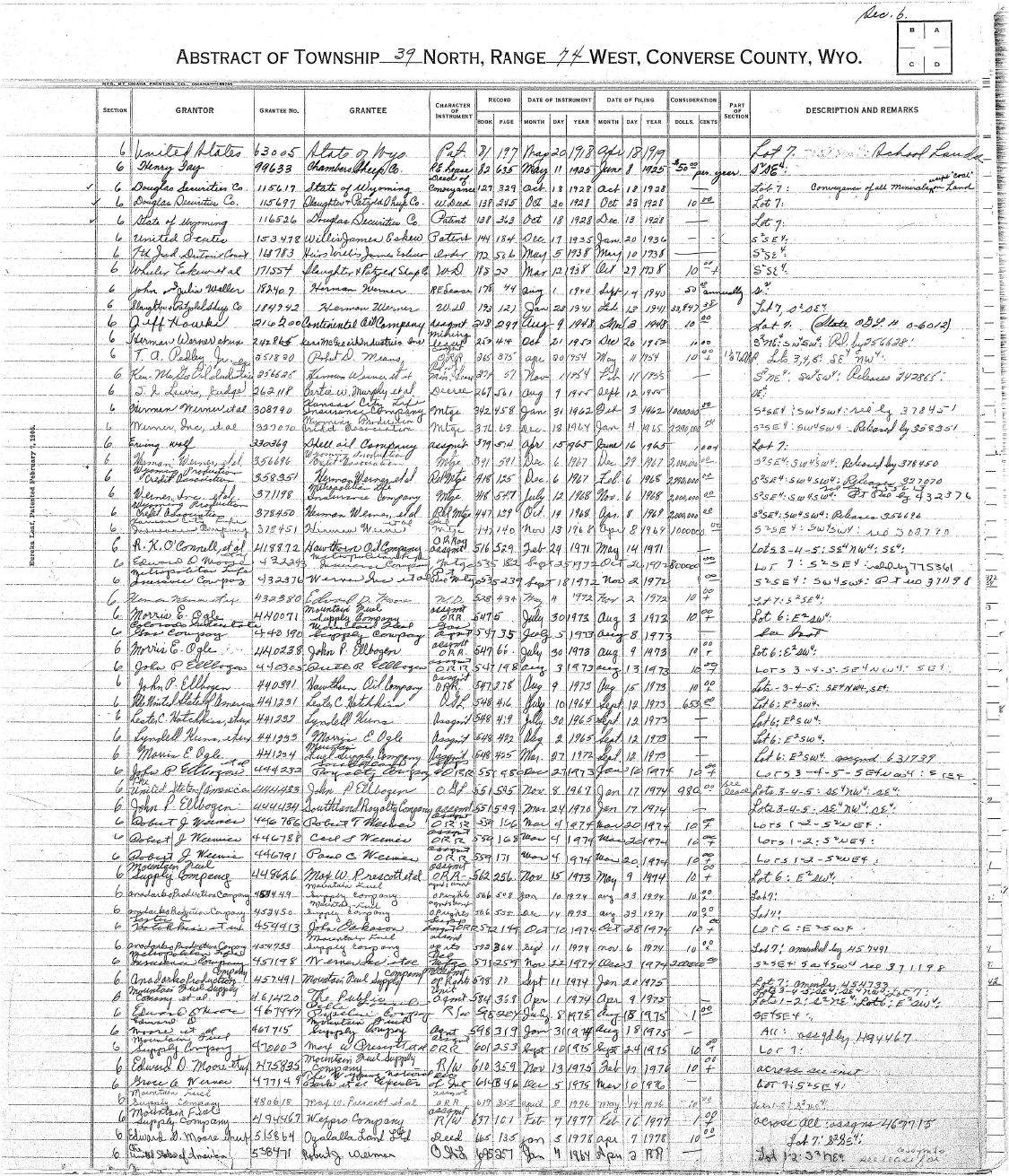
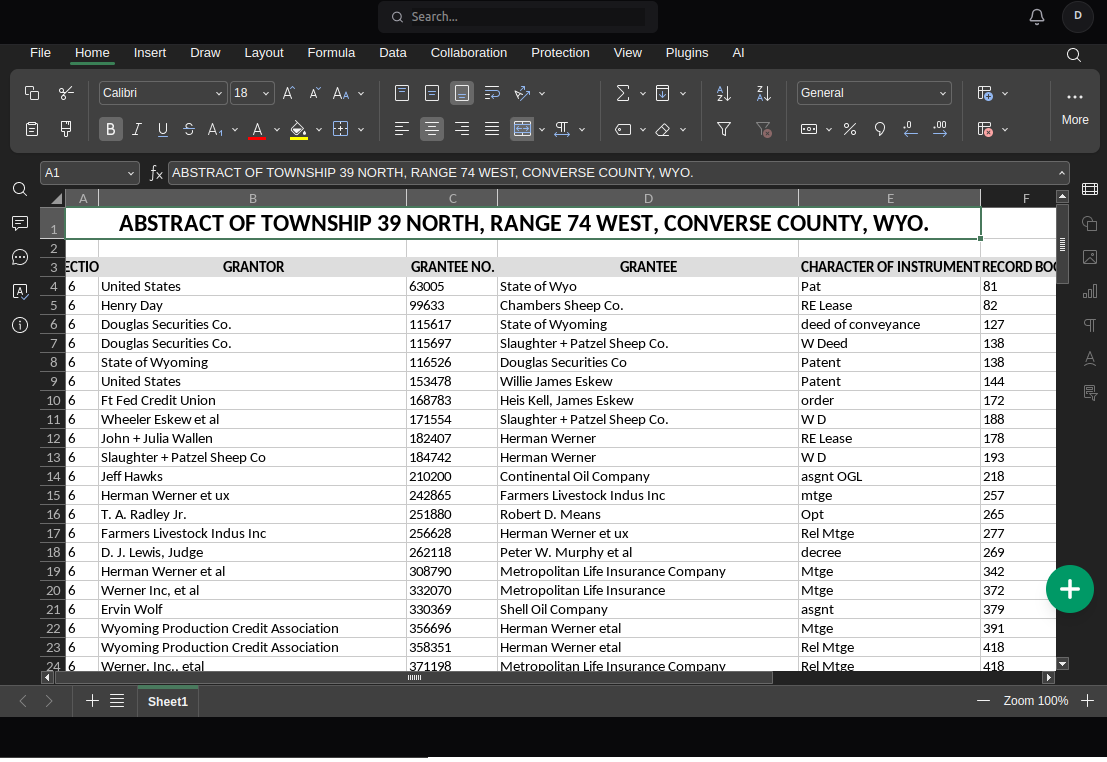
¿Quién necesita un convertidor de Imagen a Excel?
Desde capturistas de datos hasta dueños de negocios, automatizamos el trabajo aburrido
Digitalizar Facturas y Recibos
Tome una foto de facturas en papel. Nuestra IA extrae los artículos, cantidades y precios directamente en columnas para su software contable.
Captura de Pantalla a Excel
¿Tiene una tabla en un PDF o sitio web que no puede copiar? Tome una captura y súbala. Reconstruimos la cuadrícula al instante.
Registros Manuscritos
La única herramienta que maneja letra manuscrita difícil. Convierta registros de stock de almacén y diarios de campo en hojas de cálculo digitales.
Estados Financieros
Convierta fotos de extractos bancarios o libros contables impresos. Preservamos decimales y formatos de moneda para una integridad total de los datos.
Imagen a Excel: Por qué NoteOCR es mejor
No sufra con convertidores de PDF genéricos
| Método | Tiempo | Estructura de Tabla | Esfuerzo |
|---|---|---|---|
| Entrada de Datos Manual | 1 hora / página | Alto Riesgo de Error | Alto (Aburrido) |
| Herramientas PDF Genéricas | 5 minutos | Falla con Imágenes | Frustrante |
| NoteOCR IA | 60 Segundos | Retención Perfecta de Cuadrícula | Automatizado |
La mejor forma de convertir fotos a tablas
Diseñado para JPG, PNG y fotos de móviles
Agnóstico al Formato
¿No tiene un PDF? No hay problema. Nos especializamos en formatos de imagen (JPG, JPEG, PNG) que otros convertidores rechazan.
Reconstrucción Inteligente de Cuadrícula
Nuestra IA no solo lee texto; 've' la cuadrícula. Alinea los datos flotantes en filas y columnas, incluso si la foto se tomó en ángulo.
Procesamiento Móvil Primero
Creado para el flujo de trabajo 'Capturar y Listo'. Tome una foto de un documento en su escritorio y obtenga un archivo Excel en segundos.
Cómo funciona la IA de Imagen a Excel
Convertir una imagen 'plana' en una hoja de cálculo dinámica es complejo. NoteOCR usa Visión Artificial para detectar las líneas visuales (o implícitas) de una tabla. Separa la imagen en un sistema de coordenadas, ejecuta OCR en cada celda y reensambla los datos en un archivo .xlsx.
Lo que extraemos
- Estructuras de tablas de capturas de pantalla
- Datos de fotos sesgadas o en ángulo
- Números impresos y manuscritos
- Diseños de varias columnas
- Encabezados y pies de página
Consejos para conversiones perfectas
- Asegúrese de que la imagen esté enfocada (sin desenfoque)
- Evite sombras sobre la tabla de datos
- Recorte la imagen al área de la tabla relevante
- Use configuraciones de alta resolución (HD)
- Use formatos estándar como JPG o PNG
Más herramientas de conversión
Preguntas Frecuentes: Convertir Imagen a Excel
1. ¿Cómo convierto una foto a Excel?
Simplemente suba su imagen (JPG, PNG o captura) a la herramienta. NoteOCR detectará automáticamente la cuadrícula dentro de la foto, extraerá el texto y números, y generará un archivo Excel descargable.
2. ¿Funciona con archivos JPG y PNG?
¡Sí! Nos especializamos en formatos de imagen. Puede convertir JPG, JPEG, PNG y WEBP. Es perfecto para fotos de celular y capturas de pantalla.
3. ¿Puedo convertir una captura de pantalla a Excel?
Absolutamente. Si tiene una tabla en una web o un PDF protegido, solo tome una captura y súbala aquí para obtener los datos en Excel.
4. ¿Qué pasa si la foto tiene letra manuscrita?
NoteOCR es único porque maneja texto impreso y manuscrito. Si toma una foto de un libro de registro escrito a mano, nuestra IA lo convertirá en una hoja de Excel estructurada.
5. ¿Puedo usarlo en mi teléfono?
Sí. El sitio está totalmente optimizado para móviles. Puede tomar una foto desde su cámara y convertirla a Excel directamente en su smartphone.
6. ¿Puede leer fotos borrosas?
Nuestra IA mejora la imagen para enfocar el texto. Sin embargo, para una precisión del 99%, recomendamos que el texto esté bien iluminado. Si un humano no puede leerlo, la IA podría tener problemas.
7. ¿El archivo Excel se verá como la imagen?
Buscamos preservar la estructura exacta (filas y columnas). Los colores pueden estandarizarse para limpiar el documento, pero los datos estarán en las celdas correctas.
8. ¿Es seguro subir fotos de documentos financieros?
La seguridad es prioridad. Sus imágenes se procesan vía conexiones SSL cifradas y se eliminan permanentemente de nuestros servidores tras la conversión.
9. ¿Este convertidor de imagen a Excel es gratis?
Sí, puede probarlo gratis. Ofrecemos un nivel gratuito generoso. Para procesamiento por lotes de cientos de imágenes, tenemos planes de pago.
10. ¿Funciona en documentos escaneados?
Sí. Los escaneos guardados como JPG/PNG funcionan perfecto. Para mejores resultados, escanee a 300 DPI o más.
11. ¿Qué pasa si mi imagen tiene dos tablas?
NoteOCR intenta detectar todas las estructuras de cuadrícula. Típicamente las apilará o separará en el Excel final dependiendo del diseño.
12. ¿Funciona en Mac y Windows?
Al ser una herramienta web, funciona en cualquier sistema operativo (Windows, Mac, iOS, Android) con un navegador moderno como Chrome o Safari.
13. ¿Puede leer tablas sin líneas de cuadrícula?
Sí. Nuestra IA analiza el espacio en blanco y la alineación para entender dónde empiezan las columnas, incluso sin bordes visibles.
14. ¿Puedo convertir varias imágenes a la vez?
Actualmente, la interfaz procesa una por una para asegurar máxima precisión. Para acceso por API masivo, consulte nuestros precios de desarrollador.
15. ¿Qué idiomas soporta?
Soporta la mayoría de los idiomas con alfabeto latino (español, inglés, francés, alemán, etc.) y estamos expandiendo el soporte para alfabetos asiáticos y árabe.
Convierta esa foto en una hoja de cálculo
Deje de escribir. Empiece a escanear. Únase a más de 10,000 usuarios que ahorran horas.
Convertir Imagen Ahora