Scan Handwriting to Text. No App Required.
Take a picture of any handwritten page with your phone, or upload a scan, and our AI converts it to clean editable text in under 30 seconds. No app to download. Works in any browser on any device.
Upload Handwriting
Upload images of your handwritten notes to convert them into editable Word docs.
Works in your browser on any device. No download, no signup to try.
Take a picture of any page and upload it directly. No scanner hardware required.
Get your scanned text in the format you actually need.
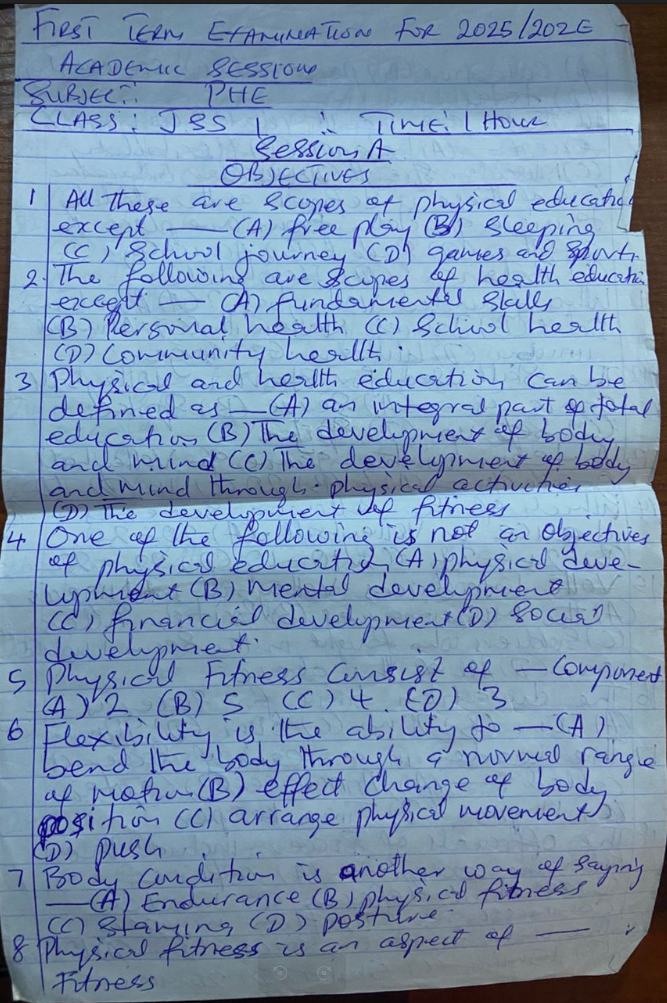
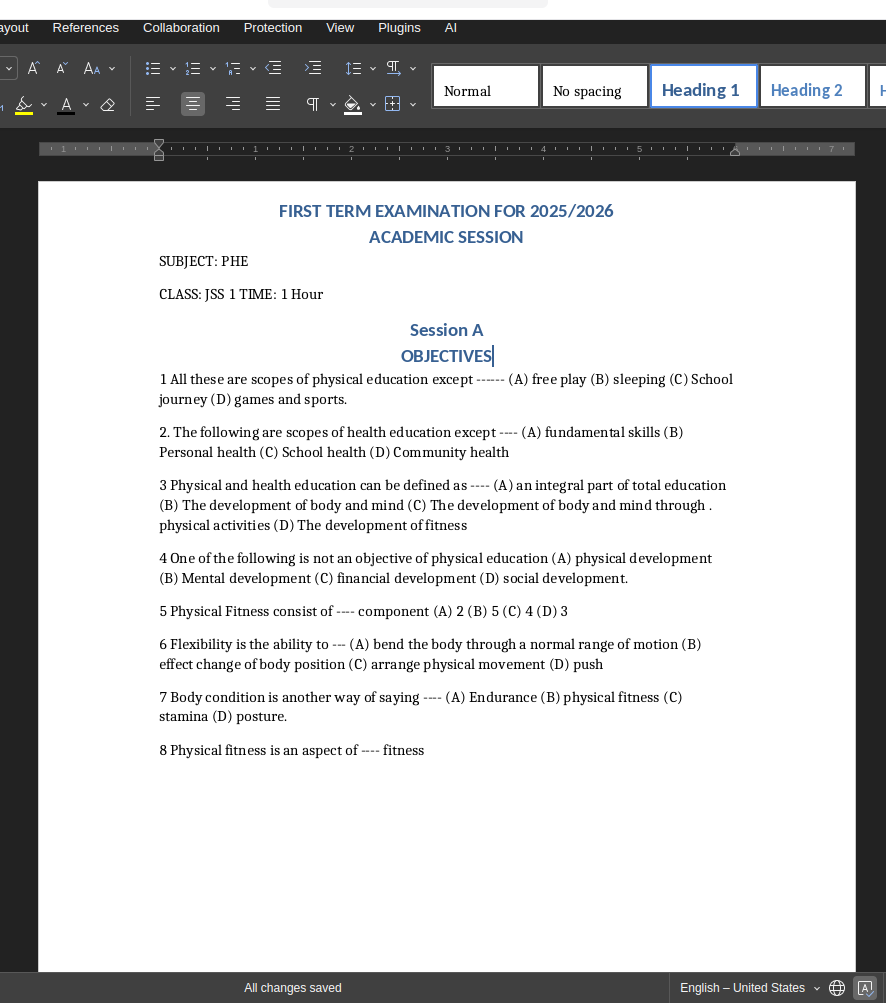
Scanned Handwriting In. Editable Digital Text Out.
Real scan result showing exactly how our AI processes a phone photo of handwritten notes.
Who Uses a Handwriting Scanner Online?
Anyone with physical handwritten pages they need digitized fast uses this. No scanner hardware required, your phone camera is enough.
Students Scanning Lecture Notes
Photograph entire notebook pages after class and get fully searchable, editable text within seconds. Stop retyping pages before exams and start actually revising instead.
Field Notes and Site Reports
Engineers, surveyors, inspectors, and field workers scan handwritten site notes directly from their phone and have them in a shareable digital format before leaving the job site.
Digitizing Paper Records and Forms
Patient intake forms, delivery receipts, timesheet records, inspection checklists written by hand - scan them and get structured editable text ready for copy-paste or export in one step.
Personal Journals and Notebooks
Digitize personal diaries, recipe books, brainstorm pages, and handwritten planners with a single phone photo. Preserve years of physical notebooks as searchable digital text you can access anywhere.
Online Handwriting Scanner: Options Compared
Most scanning tools make you install an app or tie you to a suscription before you get anything useful. NoteOCR does not.
| Method | Speed | Accuracy on Handwriting | Cost |
|---|---|---|---|
| PenToPrint (mobile app) | Fast (app only) | Good on clear writing | App required, export locked behind paywall |
| Adobe Scan + Acrobat OCR | Moderate | 40-60% on handwriting | $20/month subscription |
| NoteOCR Handwriting Scanner | Under 30 seconds | 95%+ on scanned handwriting | Free to try, no app, one-time payment |
Why NoteOCR Is the Better Online Handwriting Scanner
Purpose-built for scanning handwritten pages, not a document scanner that tries to handle handwriting as an afterthought.
Your Phone Is the Scanner
You do not need a flatbed scanner or any hardware. Take a photo of any handwritten page with your phone camera and upload it. Our AI corrects perspective, adjusts lighting, and removes shadows automatically so you get clean results from an imperfect photo.
Reads What Flatbed Scanners Cannot
Standard document scanners and general OCR tools produce gibberish on handwriting because they were built for printed fonts. Our neural network was trained specifically on scanned handwriting samples across every writing style, so it reads what others cannot.
No App. No Account. No Waiting.
Open the page in any browser, upload your scanned image, and get editable text back. No app store, no installation, no account creation, no waiting for confirmation emails. Works on iPhone, Android, Mac, Windows, and Chromebook identically.
How Scanning Handwriting to Text Actually Works
When you upload a scanned handwriting image, whether it is a phone photo or a flatbed scan, our AI runs three stages automatically. First it preprocesses the image: corrects skew and rotation, enhances contrast, removes noise and shadows, and sharpens the ink against the paper. Second it runs layout analysis to identify where text lines, paragraphs, and structural elements sit on the page. Third the handwriting recognition engine reads each line as a visual sequence - not character by character like standard OCR, but word and phrase at a time using surrounding context to interpret ambiguous letters. The output is structured text that preserves your original paragraph and line breaks.
What Our Scanner Handles
- Phone camera photos taken at slight angles - perspective corrected automatically
- Low-light and flash-washed images with automatic contrast enhancement
- Flatbed and document scanner output at 150 DPI and above
- Mixed handwriting styles on the same scanned page
- Crossed-out words, arrows, annotations, and marginal notes
Scanning Tips for Best Results
- Hold your phone directly above the page, parallel to the paper, not at an angle
- Use natural daylight where possible - avoid flash which flattens ink contrast
- Make sure the full page is within the frame before capturing
- For flatbed scans, 300 DPI produces significantly better results than 150 DPI
- If ink is faded or paper is old, increase contrast in any photo editor before uploading
Related Tools
Frequently Asked Questions About Scanning Handwriting to Text
1. What does scan handwriting to text mean?
Scanning handwriting to text means taking a physical handwritten page, photographing or scanning it into an image, and then using AI to read the handwriting and convert it to typed digital text you can edit, search, copy, and share. The scan can come from a phone camera, a flatbed scanner, or any device that produces a JPG, PNG, or WEBP image. The result is editable text in the same structure as the original handwritten page.
2. Can I scan handwriting to text online without an app?
Yes. NoteOCR runs entirely in your web browser. There is no app to download, no software to install, and no plugin required. This is a direct advantage over tools like PenToPrint which are primarily mobile apps and lock key features like text export behind a paid subscription. Open NoteOCR in any browser on any device, upload your handwriting photo, and get text back without installing anything.
3. Is there a free online handwriting scanner that does not require signup?
Yes. You can scan handwritten images and get the converted text on NoteOCR without creating an account. Upload your image and the text comes back immediately. Free accounts also exist for users who want to save and manage their scanned documents. Paid plans unlock higher volume scanning, Word and Excel export, and batch processing but the core scan-to-text feature is free to try on any image.
4. Can I scan handwriting to text from a phone camera photo?
Yes - phone camera photos are the most common upload on NoteOCR. You do not need a flatbed scanner. Take a photo of any handwritten page and upload it directly. Our AI automatically corrects perspective, adjusts for uneven lighting, removes shadows, and sharpens the image before running handwriting recognition. For best results hold the phone flat above the page and shoot in daylight rather than using flash.
5. How is NoteOCR different from PenToPrint for scanning handwriting?
The main difference is that NoteOCR works entirely in your browser with no app required, and lets you export text without a paid subscription. PenToPrint is primarily a mobile app that requires installation and locks text export behind a paywall - users on the App Store and Google Play widely report that the free tier does almost nothing useful without paying. NoteOCR also handles web-based batch uploads on paid plans while PenToPrint requires their desktop app for high-volume work.
6. Is NoteOCR better than Adobe Scan for handwriting?
For handwriting recognition specifically, yes. Adobe Scan and Adobe Acrobat's OCR are excellent for printed text and typed documents but were not built for handwriting. Adobe's tools regularly fail on cursive, messy writing, and non-uniform scripts, typically achieving 40-60% accuracy on handwriting. NoteOCR was trained specifically on handwriting samples and achieves 95% or above on the same scanned pages. Adobe also requires an Acrobat subscription at $20 per month; NoteOCR is free to try.
7. Can I upload output from a flatbed scanner?
Yes. If you already have a flatbed or document scanner, scan your handwritten pages as JPG or PNG files and upload them directly. Flatbed scans at 300 DPI or higher produce the best results because the resolution is higher and the image is perfectly flat without perspective distortion. If you do not have a scanner, a phone camera in good lighting produces comparable results.
8. Can I scan a handwritten PDF to text?
PDF uploads are supported on paid plans. If your handwritten pages are already compiled into a scanned PDF from a document scanner or a scanning app, you can upload the PDF directly and have all pages converted to text in one session. On the free tier, extract individual pages from your PDF as PNG or JPG images and upload them one at a time.
9. How do I scan lecture notes to text?
Take a photo of each notebook page after your lecture and upload it to NoteOCR. The AI reads the handwriting and returns editable text within 30 seconds per page. You can then copy the text into your study document, search for specific terms, or paste it into your notes app. This replaces retyping entire pages and turns a one-hour transcription job into a two-minute scan session. For multi-page lecture notes, batch upload is available on paid plans.
10. Can I scan handwritten field notes and site reports to text?
Yes. Field notes are one of the most practical use cases for a handwriting scanner. Engineers, construction supervisors, environmental surveyors, and site inspectors scan paper field notes from their phone on-site and have editable digital text ready to paste into reports before they even drive back to the office. NoteOCR handles the kind of handwriting that appears in real working conditions - rushed notes, abbreviated terms, mixed print and cursive on the same page.
11. Does the scanner work on messy or rushed handwriting?
Yes. Messy handwriting is the primary challenge our AI was built to handle. Standard OCR and document scanners fail on anything that deviates from clean printed fonts. Our neural network was trained on real handwriting samples including rushed notes, inconsistent sizing, crossed-out words, and heavy compression - the kinds of writing that appear when people write quickly. Accuracy on messy handwriting is typically 85-92% depending on how extreme the style is.
12. How accurate is scanning handwriting to text?
NoteOCR achieves 95-99% accuracy on clear, well-lit scanned handwriting. Messy or rushed handwriting typically comes in at 85-92%. These figures are significantly higher than general-purpose scanning tools like Google Docs, Adobe Acrobat, and Google Keep, which average 40-65% on handwriting because they were not designed for it. Always review the output before using it in final documents.
13. What file formats can I upload for handwriting scanning?
You can upload JPG, JPEG, PNG, and WEBP image files on all plans. PDF uploads are supported on paid plans. Maximum file size is 25MB per image. For best results, use the highest resolution your phone camera or scanner produces. Most modern smartphone cameras produce more than enough resolution for accurate handwriting recognition.
14. What formats can I export scanned handwriting to?
Scanned text can be exported as plain text (TXT) on the free tier. Word document (.docx) and Excel spreadsheet (.xlsx) export are available on Student plan and above. If your scanned page contains tables or structured data, the Excel export will preserve that structure. PDF export is also available on higher plans for users who want a searchable PDF version of their scanned document.
15. Can I scan and digitize old handwritten documents?
Yes. NoteOCR handles aged paper, faded ink, and older handwriting styles well. Users regularly scan old letters, journals, estate records, and family correspondence dating back decades. For very old documents with extremely faded ink or damaged paper, improving the contrast in a free photo editor before uploading increases accuracy significantly. Documents from roughly 1850 onwards work reliably. Pre-modern scripts with archaic letterforms may have lower accuracy.
16. Can I scan an entire notebook to text?
Yes. On paid plans, batch upload lets you scan and upload an entire notebook in one session with concurrent processing. On the free plan, each page is processed individually. For a full notebook digitization project, the Power User plan is the most efficient option - it includes unlimited batch processing so you can scan every page and get all text back in a single workflow rather than uploading one page at a time.
17. Can I scan multiple handwritten pages at once?
Batch scanning is available on Professional and Power User plans. You can upload multiple scanned images or a multi-page PDF in one session and receive text for all pages together. Free and Student plan users process one page at a time. For large archive digitization projects, the Power User plan includes concurrent batch processing for maximum speed.
18. Is my scanned handwriting kept private?
Yes. All uploads are encrypted via SSL during transfer. Scanned images are processed in isolated secure environments and permanently deleted within 24 hours. We never use your scanned content to train our models and never share it with third parties. Personal letters, private notebooks, medical forms, and confidential field reports are all handled with full privacy protection.
19. Can it scan handwritten forms and extract the data?
Yes. Handwritten forms - patient intake records, delivery receipts, survey responses, HR checklists - are a primary use case. Upload a photo of the completed form and the AI extracts all handwritten entries as editable text. For structured forms where data needs to go directly into a spreadsheet, the Excel export feature maps extracted data into columns automatically.
20. What is the difference between this and a photo-to-text tool?
A photo-to-text tool converts any image containing text - including printed documents, screenshots, and signs - into text using standard OCR. A handwriting scanner is specifically optimised for the unique challenges of hand-written content: connected letters, variable sizing, inconsistent spacing, and personal writing styles that standard OCR cannot read. NoteOCR is trained specifically on handwriting, which is why accuracy on scanned handwriting is 95% or above compared to 40-65% from general photo-to-text tools.
21. How can I improve the accuracy of my handwriting scans?
The biggest factor is image quality. Photograph in bright, even daylight rather than artificial light. Hold your phone directly above the page, parallel to the paper, to avoid perspective distortion. Make sure the entire page fills the frame. Avoid shadows falling across the text. For flatbed scans, use 300 DPI or higher. If the paper is old or the ink is faint, increase the contrast of the image in any free photo editor before uploading.
Ready to Scan Your Handwriting to Text?
Upload any phone photo or scanner image of handwritten notes and get editable text back in under 30 seconds. No app. No account required.
Scan Handwriting to Text Free