Convert Handwritten Notes to Word Documents
Stop retyping your notes. Our AI converts handwritten pages into editable .docx files while preserving lists, headers, margins, and your original layout structure.
Upload Handwriting
Upload images of your handwritten notes to convert them into editable Word docs.
tool_info_1_desc
tool_info_2_desc
tool_info_3_desc
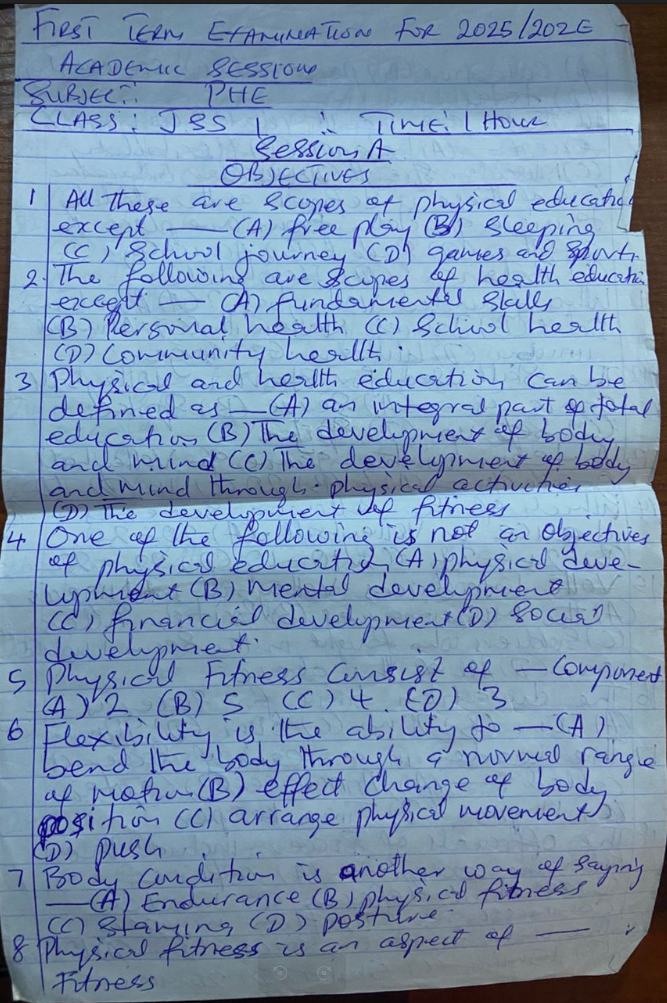
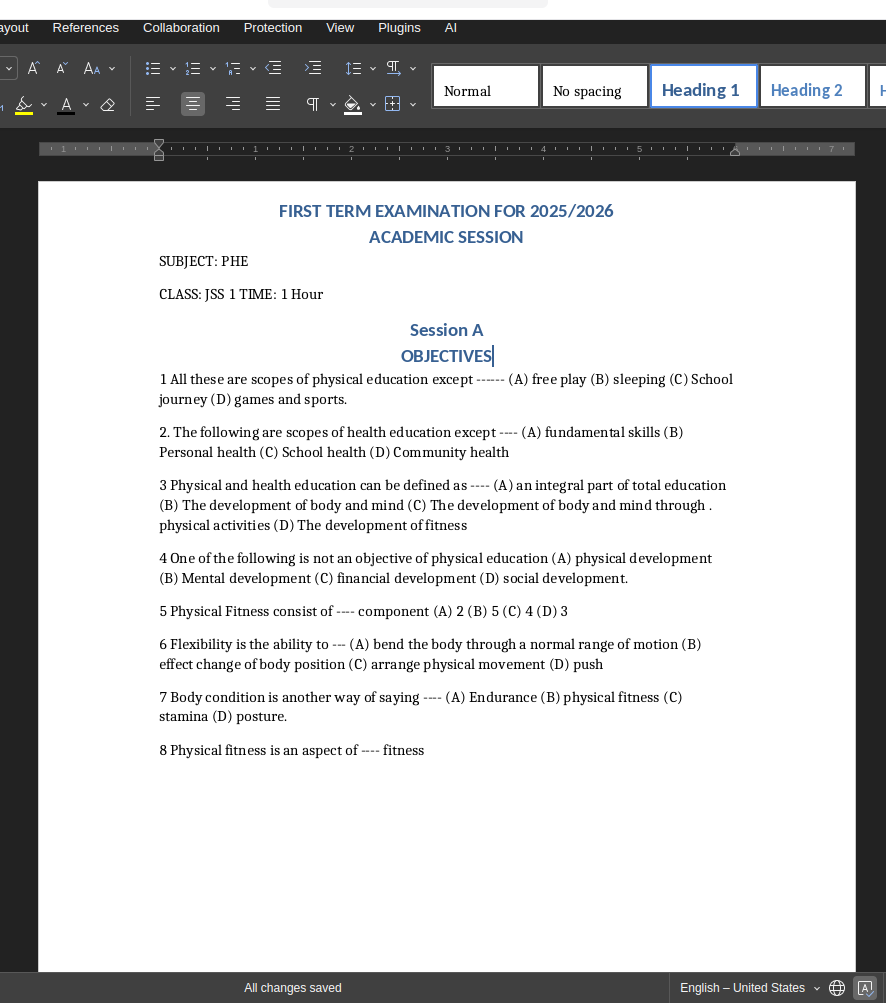
See the Difference
Real conversion showing preserved structure and formatting


Who Converts Handwritten Notes to Word?
From students to professionals, thousands digitize handwritten notes daily
Students & Researchers
Convert lecture notes, research journals, and study materials into searchable Word documents for essay writing and citation management.
Business Professionals
Digitize meeting notes, whiteboard sessions, and conference notes into formatted documents for team sharing and reports.
Authors & Journalists
Transform handwritten drafts, story outlines, and interview notes into editable manuscripts ready for editing and publishing.
Archivists & Historians
Convert historical documents, personal letters, and diary entries into digital archives for preservation and research.
Handwritten Notes to Word: Methods Compared
Why NoteOCR saves hours compared to manual typing
| Method | Time | Accuracy | Cost |
|---|---|---|---|
| Manual Typing | 60 minutes/page | 98% (slow, tedious) | Free (your time) |
| Basic OCR Tools | 10 minutes | 70% (loses formatting) | Free-$15 |
| NoteOCR Word Converter | 30 seconds | 95% with layout preserved | $8/100 pages |
Why Our Handwriting OCR Is Different
Purpose-built for converting handwritten notes to Word
Layout Preservation
Unlike basic OCR that dumps plain text, our AI detects lists, headers, paragraphs, and margins. Your Word document matches your notebook's original structure and formatting.
Cursive & Print Recognition
Advanced neural networks trained on millions of handwriting samples. Handles messy ink, cursive script, mixed styles, and even crossouts with high accuracy.
Privacy-First Processing
Your notes are encrypted during upload, processed in isolated containers, and permanently deleted after conversion. We never store or share your handwritten content.
How Handwriting Recognition Technology Works
Standard OCR tools treat handwritten text as typed characters, destroying your original formatting. NoteOCR's specialized AI analyzes pen strokes, spacing patterns, and document structure to recreate your notes as a properly formatted Word document—preserving lists, indentation, and paragraph breaks exactly as you wrote them.
What We Detect
- Paragraphs, lists, and headers
- Cursive and print handwriting
- Crossed-out text and corrections
- Margins and indentation
- Notebook and loose-leaf paper
Best Results Tips
- Use good lighting when photographing
- Keep camera parallel to page
- 300 DPI for scanned documents
- Ensure ink-to-paper contrast
- Review output before finalizing
Related OCR Tools
Frequently Asked Questions About Handwriting-to-Word Conversion
1. How do I convert handwritten notes to Word?
Upload a photo or scan of your handwritten notes to NoteOCR. Our AI recognizes the handwriting, preserves the layout structure (lists, paragraphs, headers), and converts it into a downloadable Microsoft Word (.docx) file. The process takes 20-40 seconds per page.
2. Can NoteOCR read cursive handwriting?
Yes. Our AI is specifically trained on cursive, print, and mixed handwriting styles from millions of samples. While very messy or illegible cursive may have lower accuracy, our engine handles connected letters and flowing script better than standard OCR tools.
3. Does it preserve my original note layout?
Absolutely. Unlike basic OCR that outputs plain text, NoteOCR detects bullets, numbered lists, indentation, margins, and paragraph breaks. Your Word document will mirror your notebook's structure, making it easier to navigate and edit.
4. Is the handwriting-to-Word converter free?
While NoteOCR is a paid service , we do offer free trials to user to test our accuracy and convert handwritten note to Word without a payment. We offer a free tier for individual users. High-volume batch processing (50+ notes) requires a professional one time payment, with no subscription
5. What if my handwriting is messy or unclear?
NoteOCR handles messy handwriting better than most OCR tools. Our AI is trained to recognize incomplete letters, crossed-out words, and varying pen pressure. While accuracy may be 85-90% instead of 95% for messy writing, the output is still highly usable and editable.
6. Does it work with notebook paper or just loose sheets?
Both work perfectly. Whether you're photographing a spiral notebook, composition book, or loose-leaf paper, our AI handles lined paper, grid paper, and blank paper equally well. The lines don't interfere with text recognition.
7. Can it convert mathematical formulas or equations?
NoteOCR can recognize handwritten numbers and basic math symbols, but complex equations with special notation may need manual review. For best results with math-heavy notes, use our specialized Math OCR mode (coming soon) or manually correct equations after conversion.
8. Can I convert multiple pages at once?
Yes. depending on your selected bundle you can convert multiple images to one document at once with NoteOCR
9. Can I open the file in Google Docs or only Microsoft Word?
The .docx format works in Microsoft Word, Google Docs, LibreOffice, Apple Pages, and virtually any modern word processor. You can upload the downloaded file to Google Docs and edit it there without issues.
10. Can I edit the Word document after conversion?
Yes. The downloaded .docx file is fully editable. You can correct any misread characters, change formatting, add or remove content, and use all standard Word features. NoteOCR simply automates the initial transcription.
11. Does it recognize crossed-out or deleted text?
Our AI attempts to detect crossed-out text and typically excludes it from the final document. However, heavily scribbled deletions may still appear and need manual cleanup. Always review the output before finalizing.
12. What handwriting styles does it support?
NoteOCR supports print (block letters), cursive (connected script), mixed styles, all-caps, and various pen types (ballpoint, gel, marker, pencil). We're trained on handwriting from multiple languages and writing systems.
13. How can I get the best conversion results?
For best accuracy: (1) Use good lighting when photographing, (2) Keep the camera parallel to the page (avoid angles), (3) Ensure adequate contrast between ink and paper, (4) Capture the entire page in one shot if possible. 300 DPI scans work better than low-res phone photos.
14. Is my personal journal or diary content secure?
Yes. All uploads use SSL encryption. We process your notes in isolated containers and permanently delete the images and converted files within 24 hours. We never read, store, or share your personal content. NoteOCR is privacy-first by design.
15. Why not just type my notes manually?
Manual typing takes 5-10 minutes per page and introduces transcription errors. NoteOCR completes the same task in 30 seconds with 95% accuracy, saving hours on multi-page notebooks while reducing human error. Spend your time reviewing and editing, not retyping.
16. How do students benefit from handwriting-to-Word conversion?
Students can digitize lecture notes for easier studying, search for keywords during exam prep, share notes with classmates, create study guides by combining multiple notebooks, and cite sources more easily when writing essays. Digital notes are also backup-protected against loss.
17. Can I convert meeting notes or whiteboard photos to Word?
Yes. Upload photos of whiteboard sessions, flipchart notes, or handwritten meeting minutes. Our AI works on various backgrounds and formats. For whiteboard photos, ensure the image is clear and properly lit for best results.
18. What languages does the handwriting recognition support?
NoteOCR supports English, Spanish, French, German, Italian, Portuguese, and many other Latin-alphabet languages. We're expanding to support Arabic, Chinese, Japanese, and other scripts. Check our language page for the full list.
19. How is this different from phone scanning apps?
Phone apps like Microsoft Lens or Adobe Scan focus on document scanning, not handwriting recognition. They work well for printed text but struggle with handwritten content. NoteOCR specializes in handwriting OCR with layout preservation, giving you properly formatted Word documents instead of scanned images.
20. Can I digitize old historical documents or letters?
Yes. NoteOCR works on aged paper, faded ink, and historical handwriting styles. However, very old scripts (like 19th-century calligraphy) may need manual review. For archival projects, we recommend testing a sample page first to verify accuracy.
Ready to Digitize Your Handwritten Notes?
Join 50,000+ students and professionals who've converted notes with NoteOCR
Convert Your Notes Now