Copywritee is now NoteOCR. Smarter features, new home!
LogoNoteOCR
Professional Document OCR

Convert Scans into Word Documents

Digitize your paperwork instantly. Upload scanned images of contracts, books, or physical documents, and our AI will reconstruct them as fully editable Microsoft Word (.docx) files.

Upload Handwriting

Upload images of your handwritten notes to convert them into editable Word docs.

Fully Editable Text

Update clauses, fix typos, and format freely

Layout Intact

Headings and lists carry over to Word

Secure Processing

Your scans are never stored or shared

ENTERPRISE-GRADE SECURITY
HIGH-VOLUME CAPABLE
99% PRINT ACCURACY

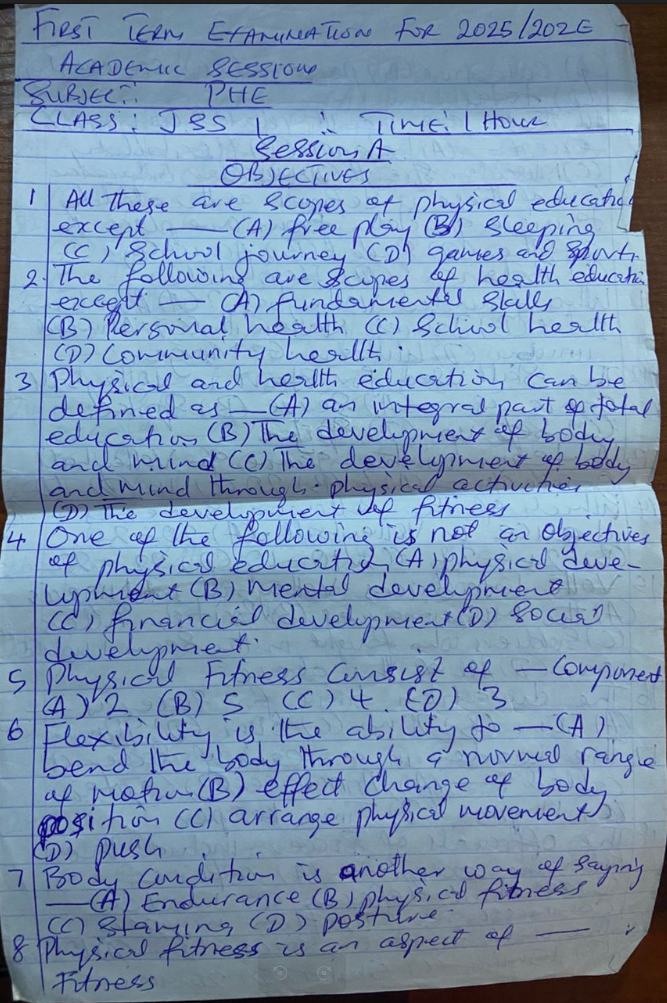
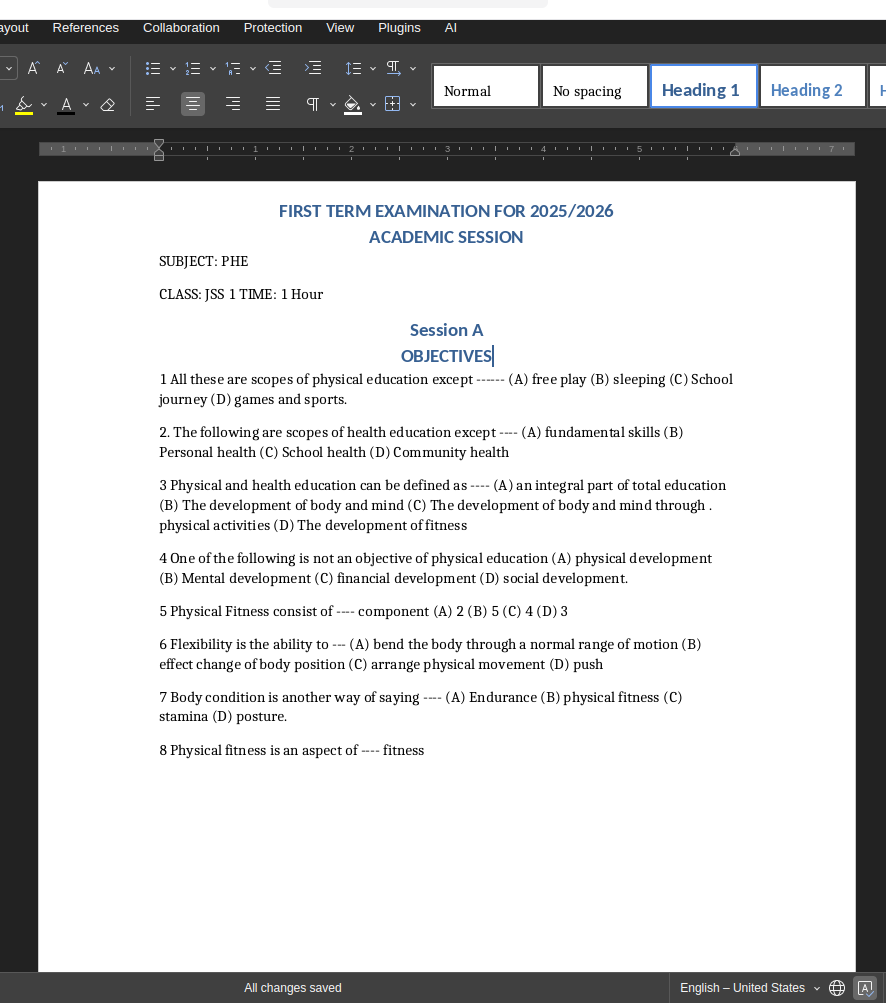
From Physical Paper to Digital Document

See how we convert a flat digital scan into a fully workable text document.

Before: Scanned Paper Image
After: Editable Word Document

Who uses our Scanner to Word tool?

Built for professionals who deal with heavy paperwork.

Legal & Real Estate

Scan signed physical contracts, lease agreements, and deeds, then convert them to Word to easily edit clauses or update terms.

Office Administration

Stop manually retyping printed memos, vendor invoices, and physical mail. Scan and convert them to editable text in seconds.

Authors & Publishers

Digitize old out-of-print books, printed manuscripts, or magazine articles using a flatbed scanner to create editable digital archives.

Academic Research

Scan pages from reference books or library archives and convert them to Word documents for easy citation, highlighting, and searchability.

Digitizing Scans: The Best Approach

Why manual transcription is a thing of the past for scanned documents.

MethodTimeLayout RetentionCost
Manual Data Entry1 hour per 5 pagesLoses original layoutHigh labor cost
Free Online Converters2 minutesPoor (Messes up margins)Free
NoteOCR Scan Engine20 SecondsMaintains paragraphs & listsFree to Try

Built for Scanned Media

Advanced features to handle the quirks of hardware scanners.

Deskew & Auto-Rotation

Did you feed the paper into the scanner slightly crooked? Our engine automatically straightens skewed scans before extracting the text.

Speckle & Noise Removal

Old scanners often leave black dots or lines on the image. Our AI cleans the scanned background to ensure perfect text recognition.

Preserves Document Structure

Maintains your physical document's headings, bullet points, and paragraph indents when migrating the text to Microsoft Word.

How We Process Scanned Documents

When you upload a scanned image, NoteOCR utilizes specialized Document Layout Analysis (DLA). Unlike basic tools that read left-to-right blindly, our engine understands the structural hierarchy of a physical page.

What Our OCR Engine Detects

  • Standard printed typography and fonts
  • Multi-column layouts and sidebars
  • Italics, bold text, and underline formatting
  • Handwritten signatures on printed forms
  • Numbered lists and bullet points

Tips for Scanning Hardware

  • Set your scanner to at least 300 DPI
  • Save scans as high-quality PNG or JPG files
  • Wipe your scanner glass to avoid smudges
  • Press thick books flat against the glass
  • Use 'Black & White' mode for crispest text

Explore More Document Tools

Frequently Asked Questions about Scanned Documents

1. How do I convert a scanned document to Word?

Save your scanned document as an image file on your computer. Upload it to our secure tool, and our Optical Character Recognition (OCR) software will read the printed text and generate a fully editable Microsoft Word document.

2. Does this work with mobile scanner apps?

Yes! If you use apps like Apple Notes Scanner, CamScanner, or Adobe Scan to take pictures of documents, simply save those scans as images to your device and upload them here.

3. What if my scanned document is crooked?

Our system includes an automatic deskewing feature. If the paper was fed into the scanner at a slight angle, our AI will automatically straighten the image internally before extracting the text.

4. Can it read old documents with faded ink?

Yes, our tool applies contrast enhancement to scanned files before reading them. While very heavily degraded documents may have a few typos, it performs exceptionally well on older, faded typefaces.

5. What happens to handwritten signatures on scanned forms?

Our OCR is primarily designed to extract text. If there is a handwritten signature on a printed contract, the system may attempt to read it as text or ignore it. For the exact signature image, you will need to refer to the original scan.

6. What DPI should I use for scanning?

We highly recommend scanning your physical documents at 300 DPI (Dots Per Inch). This provides the perfect balance of crisp, clear text for the OCR engine without creating excessively large file sizes.

7. Can I use this on a Mac?

Yes, our Scan to Word converter is completely web-based. It works seamlessly on MacOS, Windows, Linux, and all mobile operating systems without requiring you to download any external software.

8. Are my scanned business documents secure?

Security is our priority. Your scans are uploaded via an encrypted connection, processed in isolated secure containers, and automatically deleted from our servers shortly after you download your Word document. We do not retain your files.

9. Will I be able to edit the text directly?

Absolutely. The output is a native .docx file. Once you open it in Microsoft Word, you can delete text, change fonts, type new paragraphs, and edit it just as if you had typed the document yourself.

10. Does it recognize languages other than English?

Yes, our scan engine recognizes dozens of languages, including Spanish, French, German, Italian, and Portuguese. It can also handle documents that feature a mix of these languages.

Ready to Digitize Your Paperwork?

Turn those physical scans into workable Word files today.

Upload Scan Now